
Discussion Checkpoints
Discussion Checkpoints are a Canvas feature that allow you to assign two deadlines and point values within a single discussion: one for the initial post and one for replies. Students see each checkpoint on their Calendar and To-Do list, while instructors benefit from clearer, stage-based grading. This structured participation approach presents students with two distinct milestones, encouraging them to post early and then reply later. This pacing supports more thoughtful dialogue, consistent participation, and simplifies grading for instructors. Use our guide to set this up in minutes and help your students avoid the last-minute posting rush.
How to Enable Checkpoints
1. Open and edit a discussion.
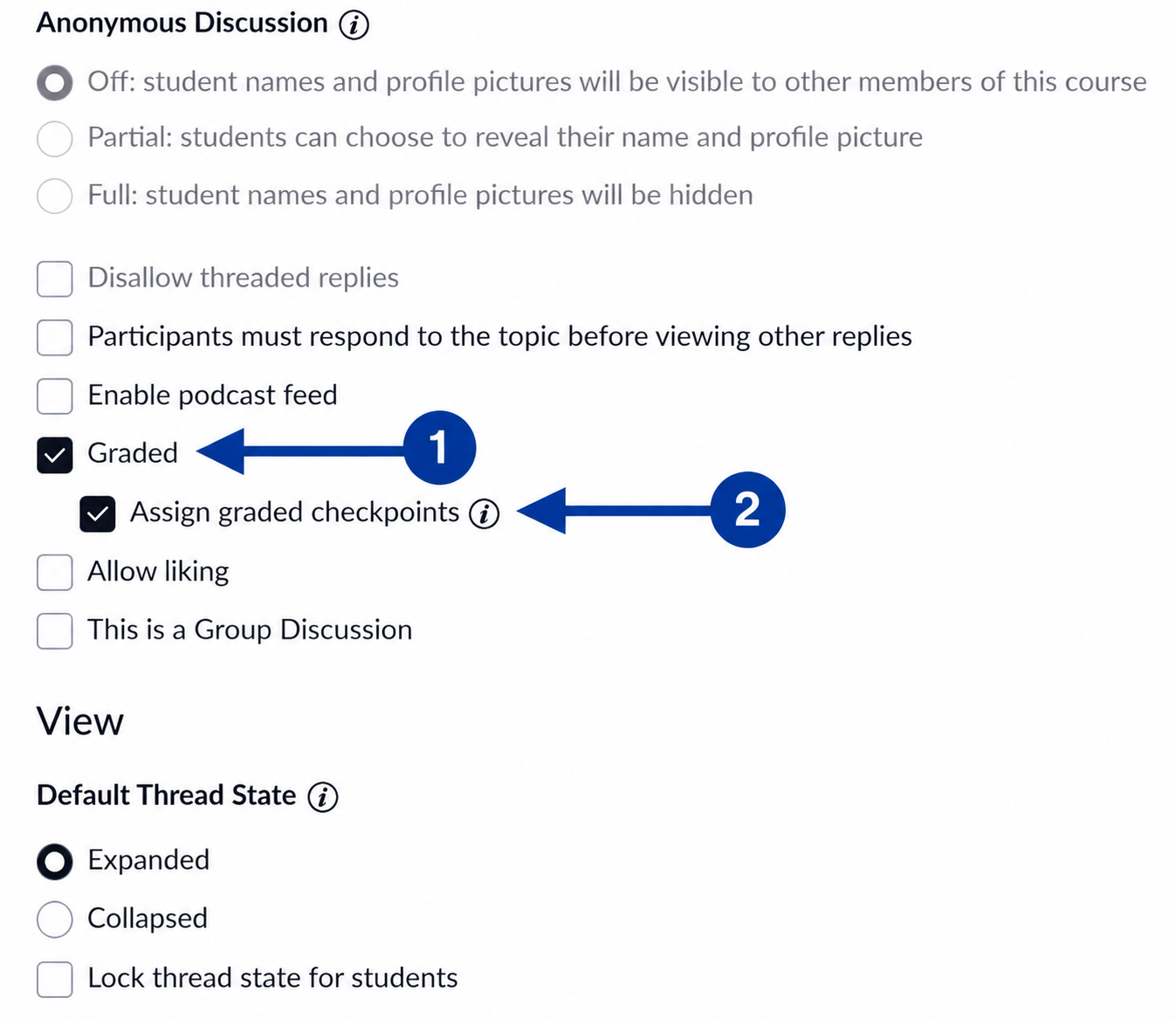
- On the discussion settings page, scroll to Options.
- Under Options, check “Graded,” then select “Assign graded checkpoints.”
- Note: This option is only available for graded, threaded discussions.
2. Enter point values.
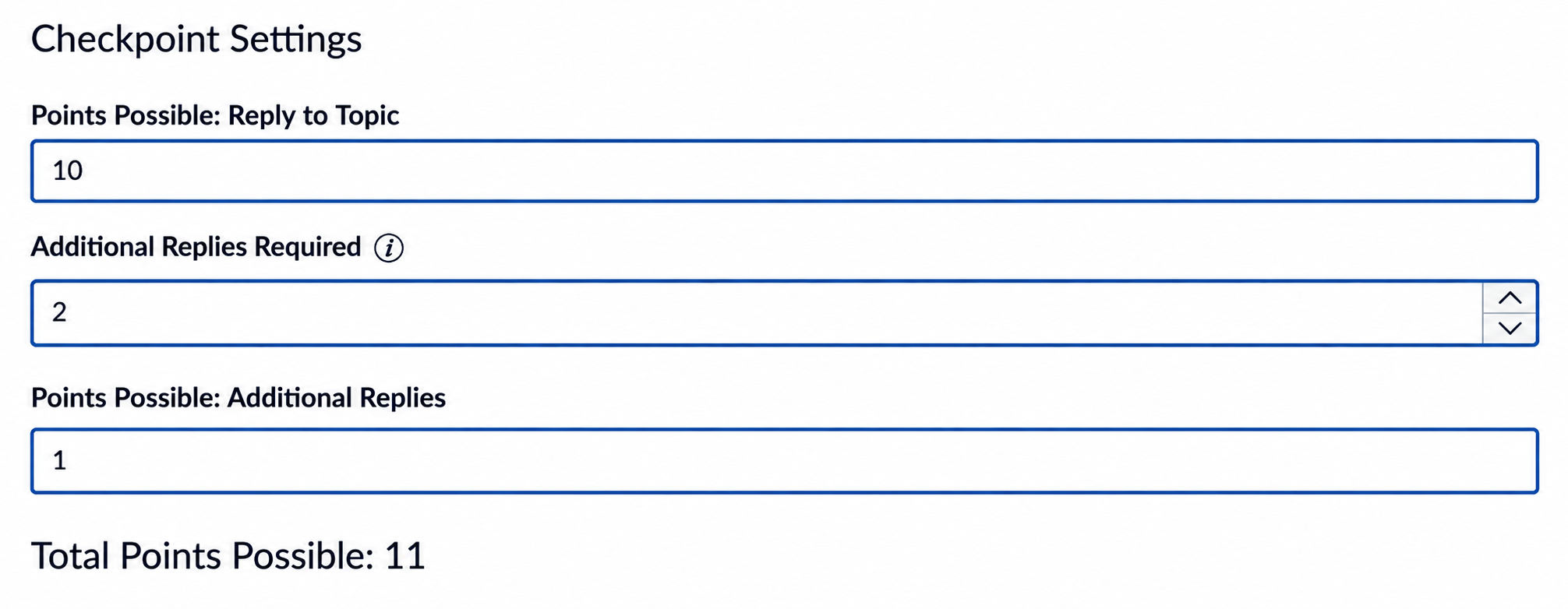
- In the new Checkpoint Settings area, set the points for the initial post (“Reply to Topic”) and for the required replies.
- Specify how many replies are required.
- Canvas will automatically calculate the total possible points.
3. Set due dates.
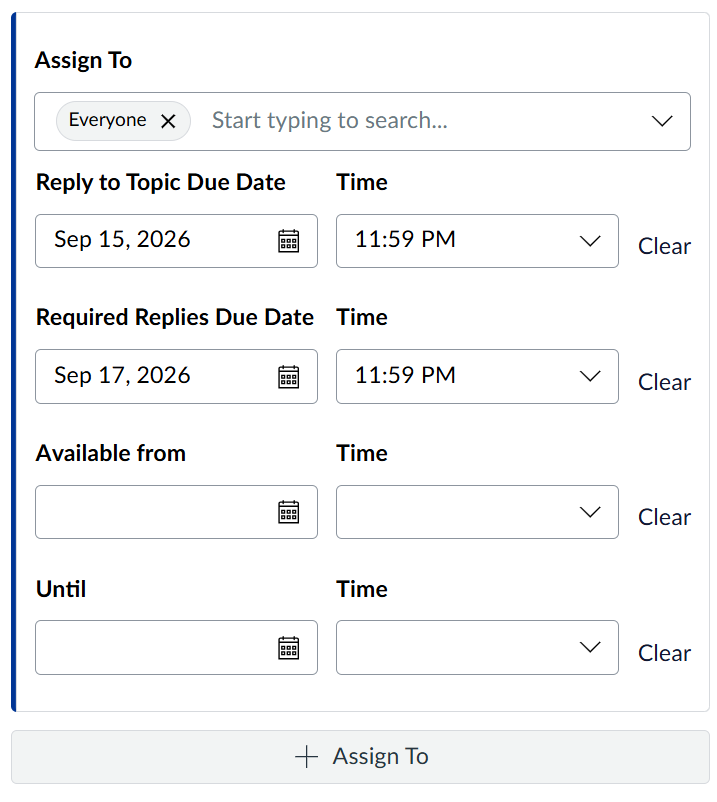
- In the Assign To section at the bottom of the page, two date fields now appear: one for the “Reply to Topic Due Date” (initial posts) and one for the “Required Replies Due Date” (peer responses).
- Enter appropriate dates and times. You can also assign different dates for sections or individual students.
4. Save and publish.
- Once both checkpoints are set, click Save.
- Canvas will publish both deadlines, which then appears as separate items in the students’ Calendar and To-Do lists.
Grading Checkpoints
In SpeedGrader, each checkpoint displays its own grading field and status menu (e.g., Late, Missing). After you enter scores for posts and replies, Canvas automatically sums them into the Current Total. A single comments box remains available for overall feedback.
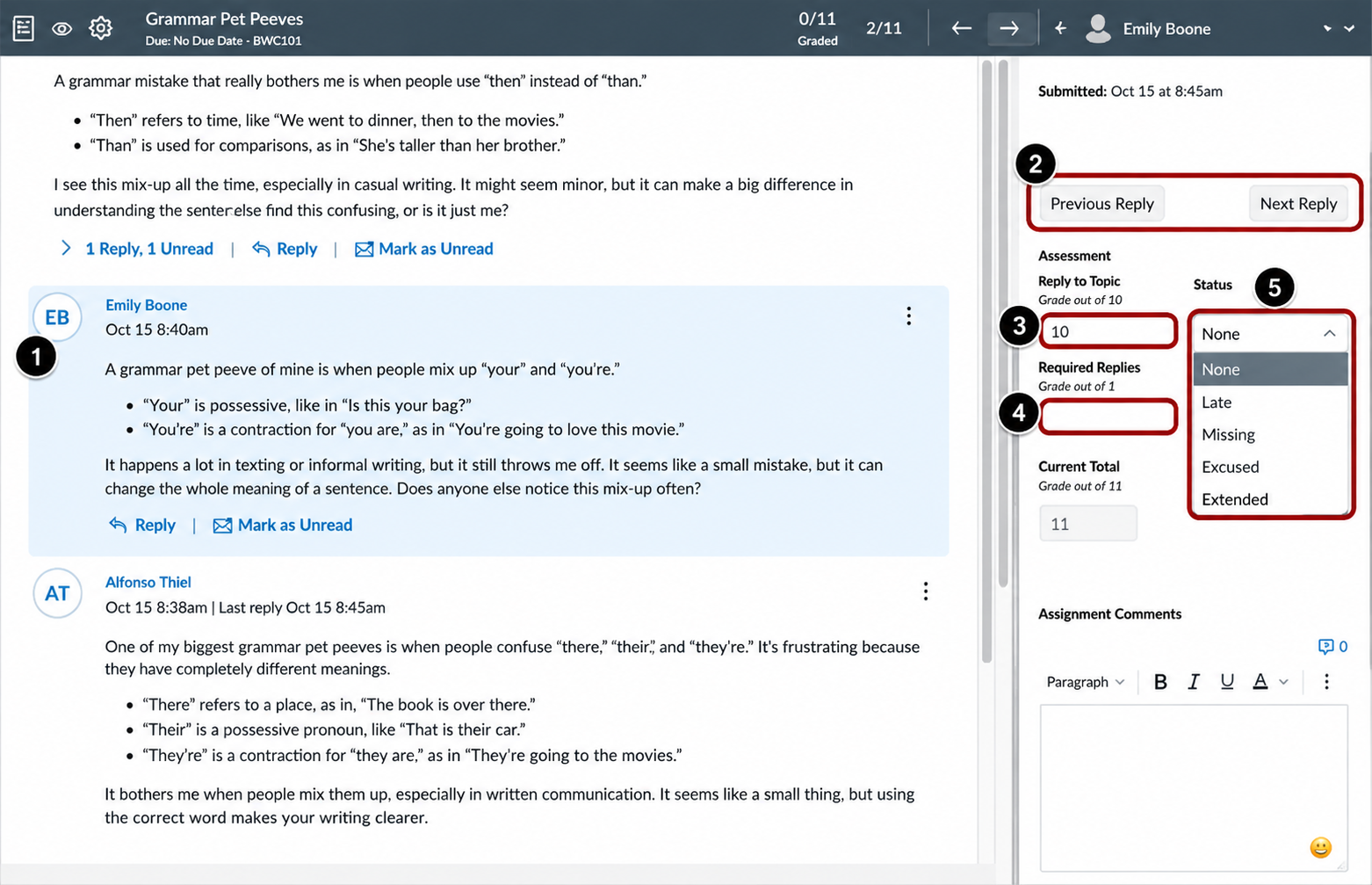
SpeedGrader view showing two checkpoint grading fields. Screenshot from the University of Tennessee Office of Innovative Technologies (2025).
You can still attach a rubric to the discussion. However, Canvas does not auto-populate rubric criteria scores into the checkpoint fields. Scores must be manually entered for each checkpoint. For example, if a rubric totals 10 points, and you award 6 for the initial post, you should input 6 in the “Reply to Topic” checkpoint field.
Student View & Impact
Students see each checkpoint as two distinct milestones:
- Two Calendar events
- Two To-do items
On the discussion page, a “View Due Dates” button lets students review both deadlines. This visibility helps your students plan ahead, meet both requirements, and engage more consistently.
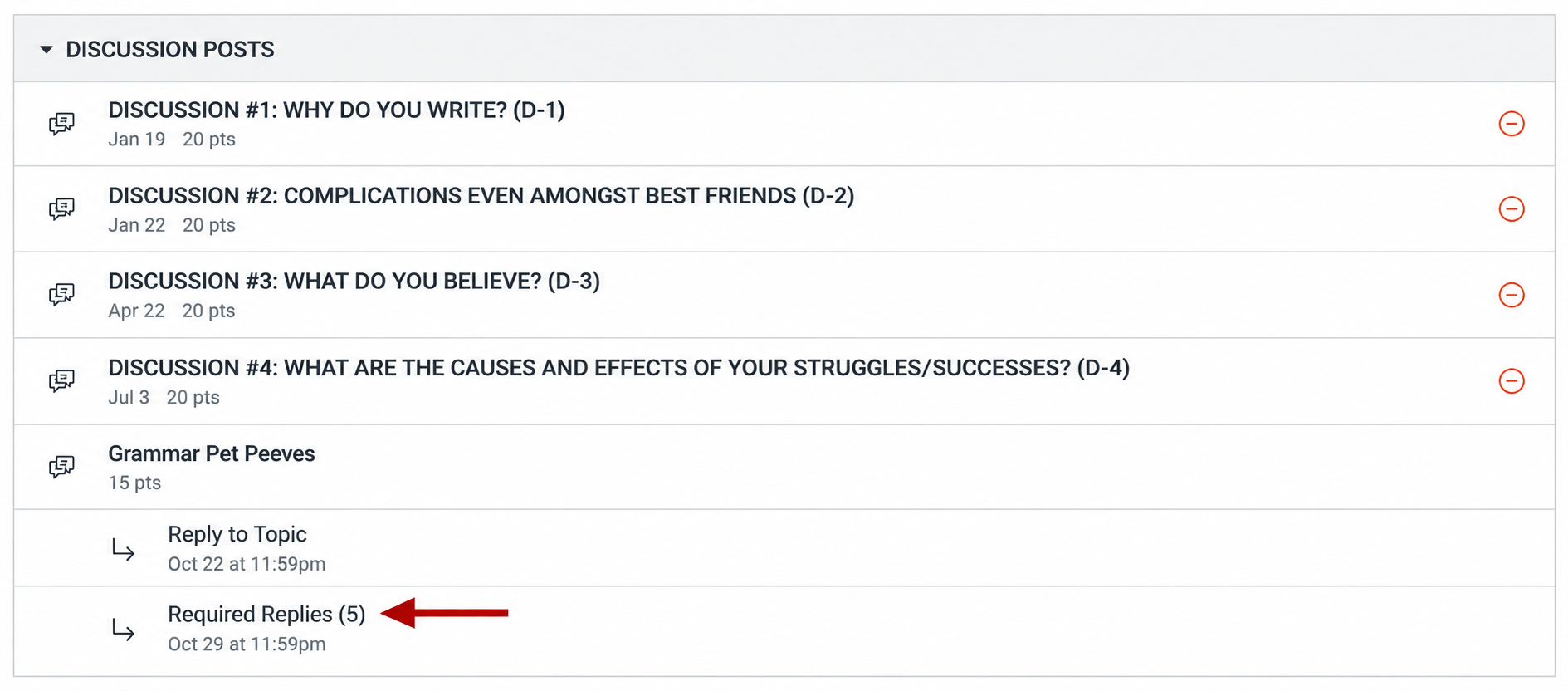
Student-facing view of checkpoints displayed in Assignments and Modules. Screenshot from Cedarville University Center for Teaching and Learning (Eissler, 2025).
Limitations to Note
- Works only with graded, threaded discussions.
- They cannot be used with Course Pacing, Moderated Grading, Curved Grades, Restrict Quantitative Data, or Mastery Paths.
- Checkpoint discussions do not appear in the bulk edit due-date tool, though due dates do shift normally when courses are imported.